1. Platform Overview
What is the Creator Hub?
The Creator Hub is an official platform designed to connect content creators with amazing opportunities. By submitting video and livestream content, you can participate in various events and earn rewards, including cash prizes, in-game items, and exclusive merchandise.
To support your content creation journey, we offer a comprehensive library of official resources, including high-quality game footage, images, and audio materials. Whether you're a video creator, streamer, or gaming enthusiast, the Creator Hub provides a space to showcase your talent and be rewarded for your contributions.
What can I do on the platform?
- Participate in official events by submitting video or livestream content.
- Earn rewards based on views, engagement, or event-specific criteria.
- Link your social media accounts, game profiles, and PayPal for seamless data tracking and reward distribution.
- Access the Media Center to download official game assets and enhance your content.
- Monitor your content's performance, track reward history, and utilize platform tools to optimize your creative output.
2. Account Registration & Login
How to Create an Account?
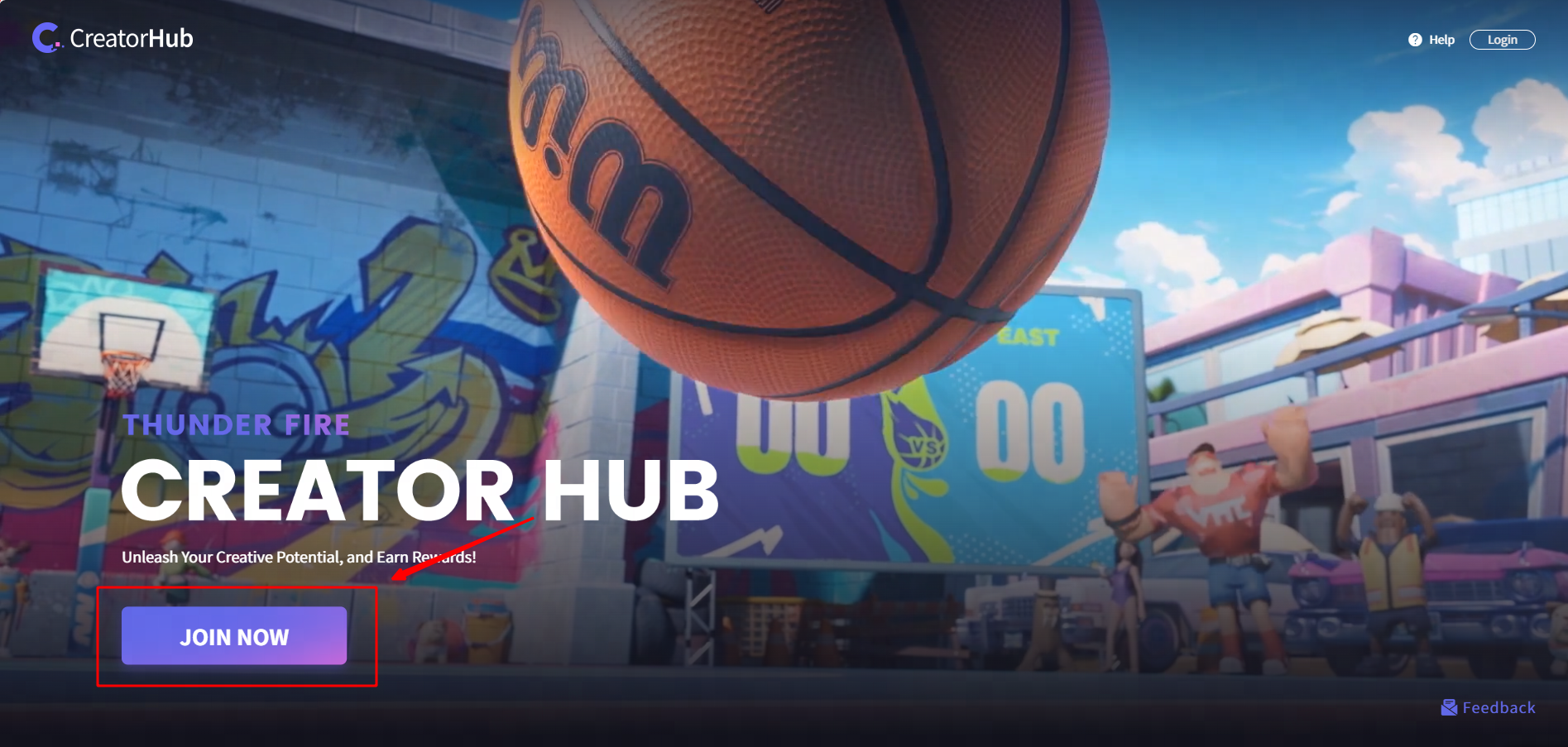
1. Visit the Creator Hub website and click the "JOIN NOW" button.
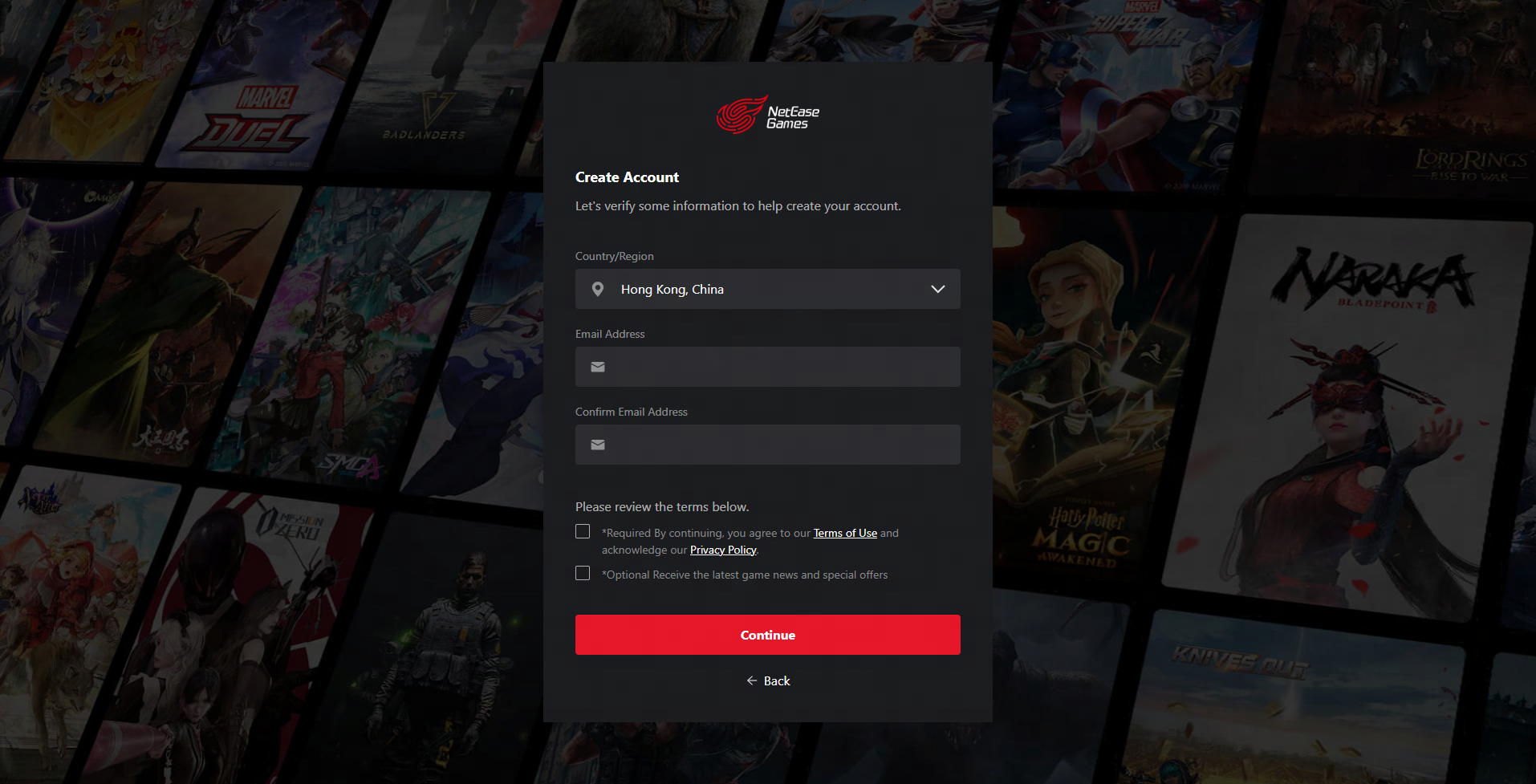
2. Enter your email address, set a password, and complete the account creation process.
How to Get Started?
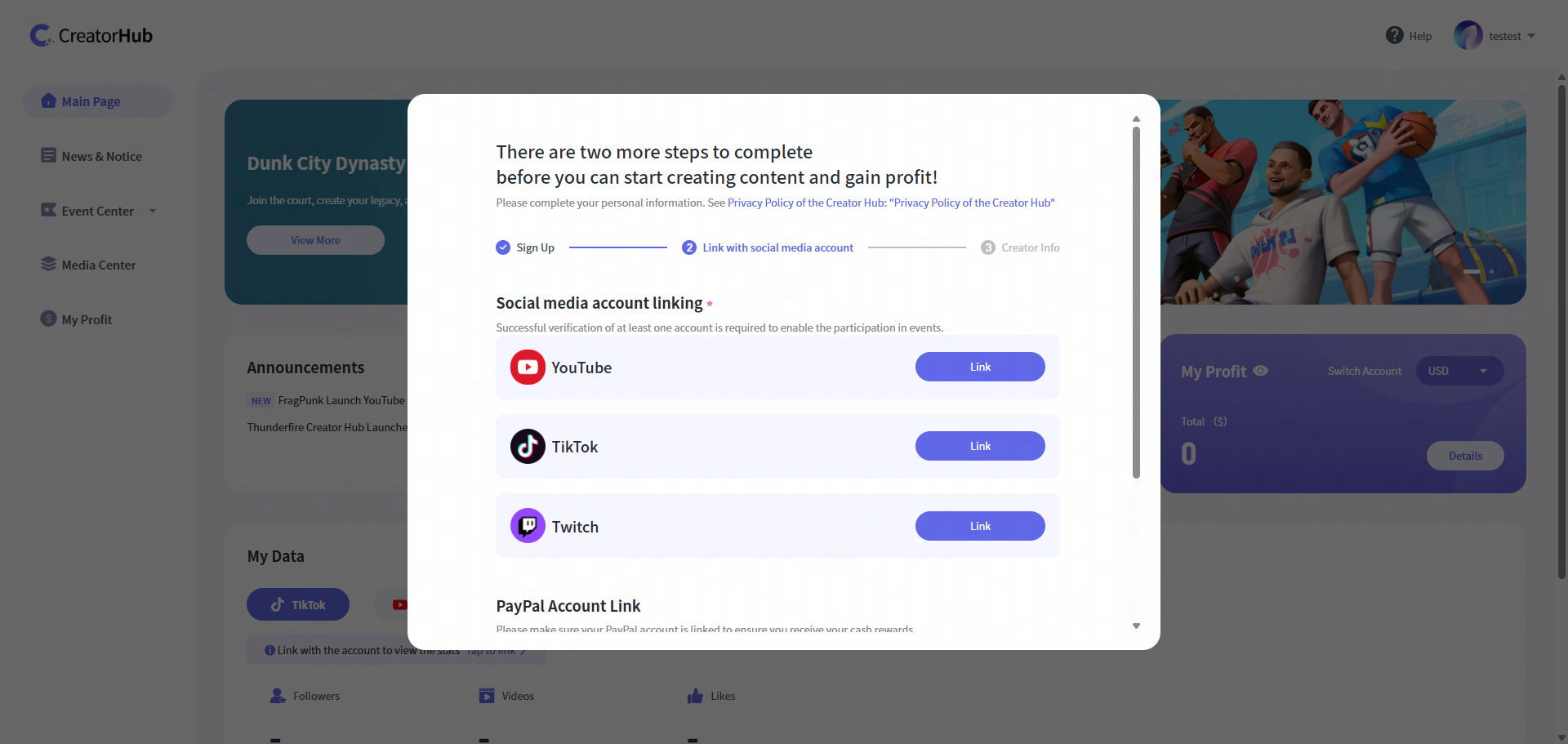
After logging in, you'll need to complete two simple steps to activate your account:
1. Link your accounts – Connect your social media, game account, and PayPal (at least one social media account is required to proceed).
2. Set your preferences – Choose your content creation focus, preferred game genres, and confirm your submission region and email address.
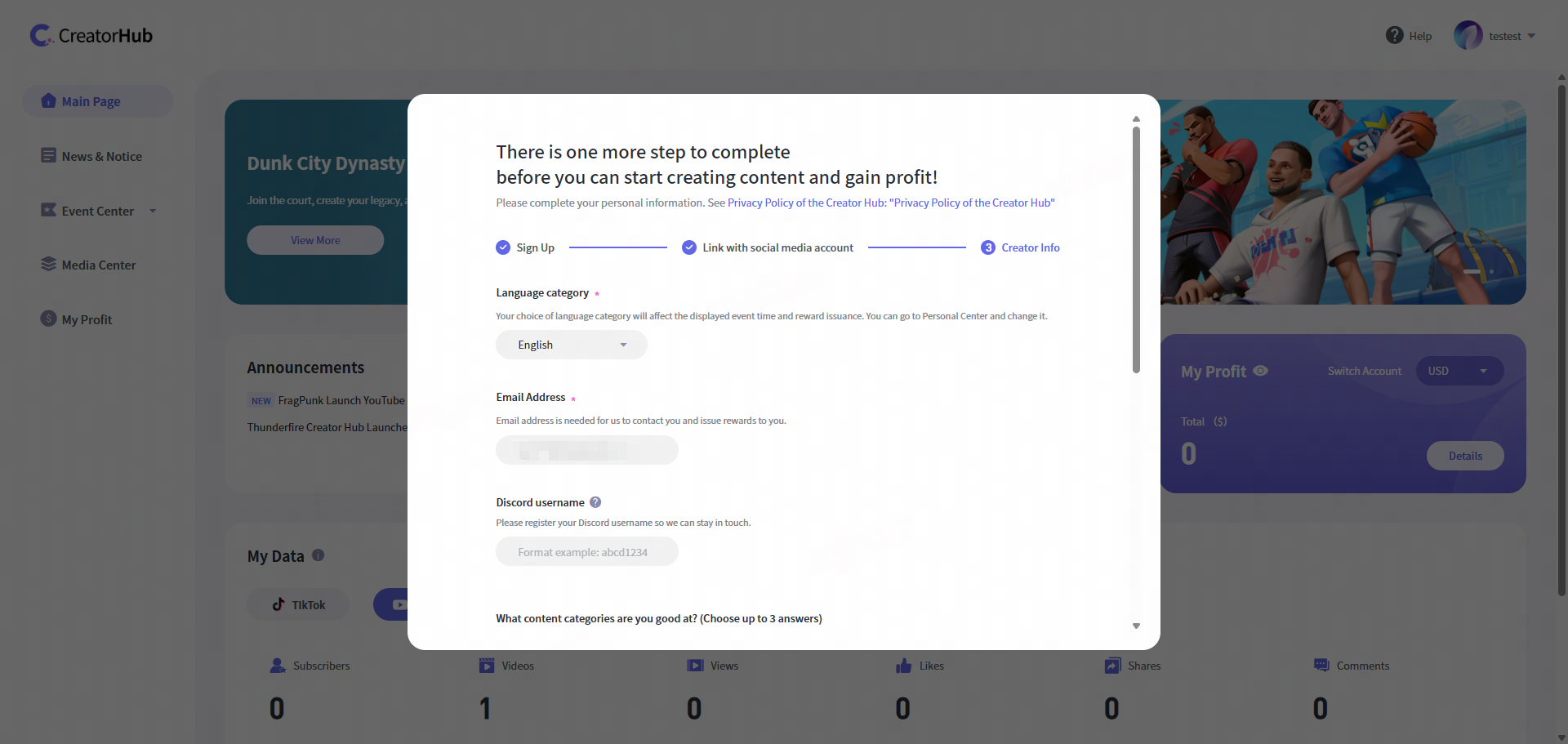
Which social media platforms are supported for linking?
You can currently link the following social media platforms:
- YouTube
- TikTok
- Twitch
Once linked, your content's views and engagement data will automatically sync with the platform for activity tracking and reward calculation.
3. Participating in Events
How to View Event Details?
1. Log in to Creator Hub and go to the "Events Center - Event Hall" page. Browse ongoing events and use filters as needed.
2. Click "Submit Now" or "View More" to access the event's full description and requirements.
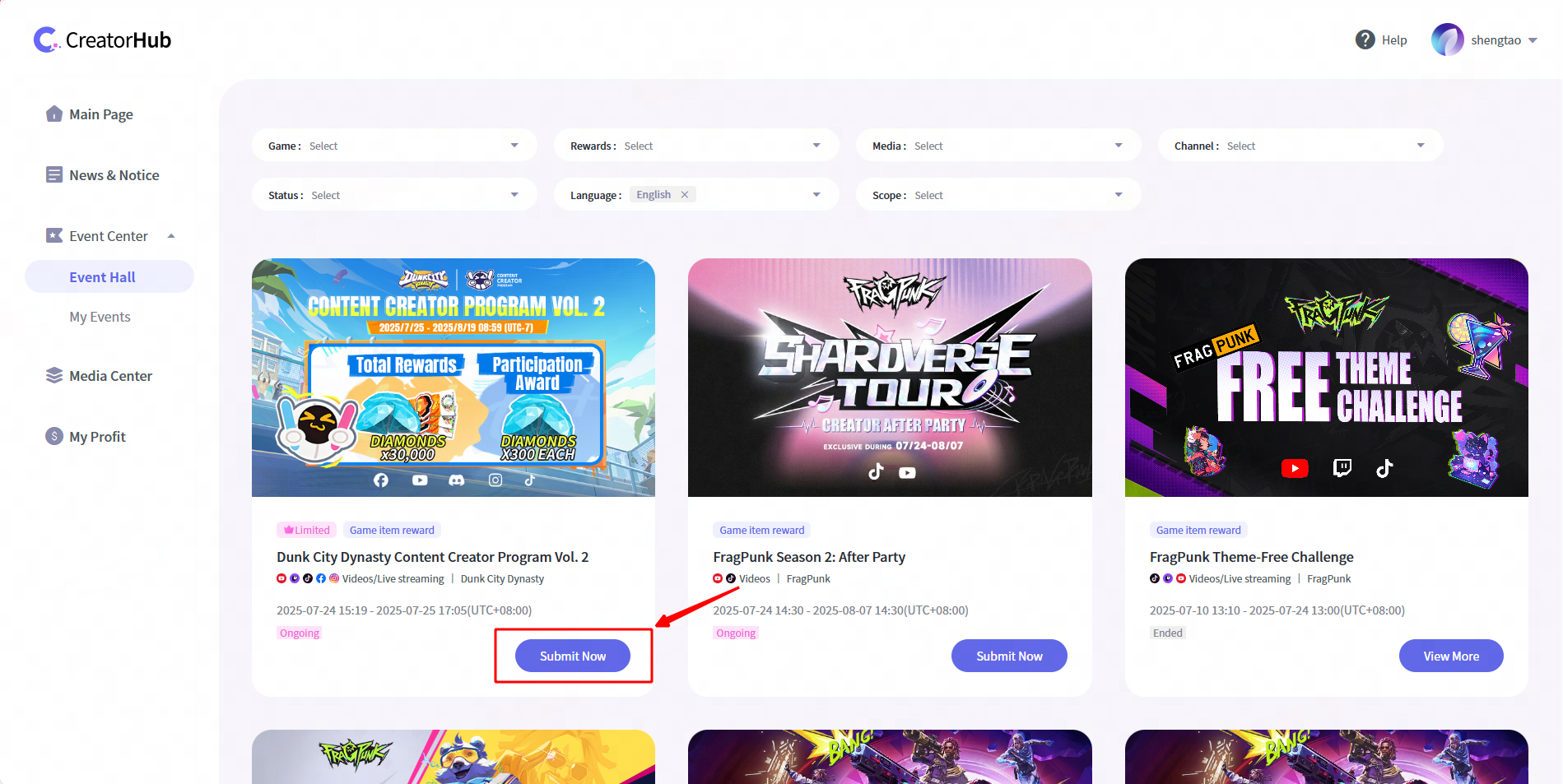
What are the event rules and rewards?
Each event has specific rules and reward mechanisms, such as:
- Rewards are based on the video's view rankings.
- Rewards based on live stream engagement metrics, including watch time, peak concurrent viewers, and average concurrent viewers.
- Fixed rewards for completing specific tasks, such as publishing themed content.
- Events offering cash rewards require a linked PayPal account; failure to bind an account may affect reward distribution.
*Please carefully read the event details page for specific rules.
How to Submit a Video?
1. On the event details page, click "Submit Event Entries" to open the submission panel.
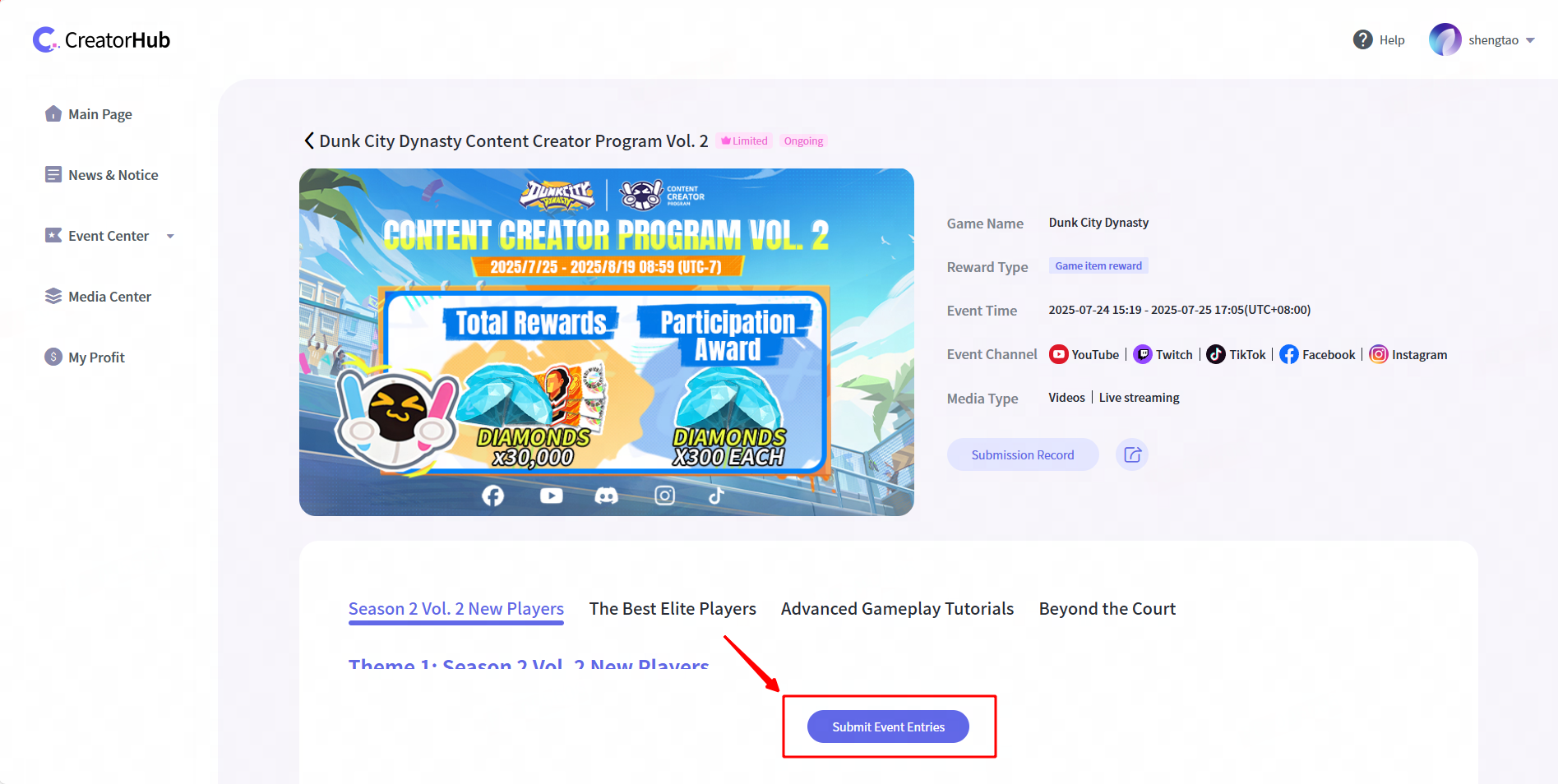
2. Paste or enter the URL of your published video in the designated field.
3. Click "Submit" to finalize your entry. Once submitted successfully, your video will be considered for the event.
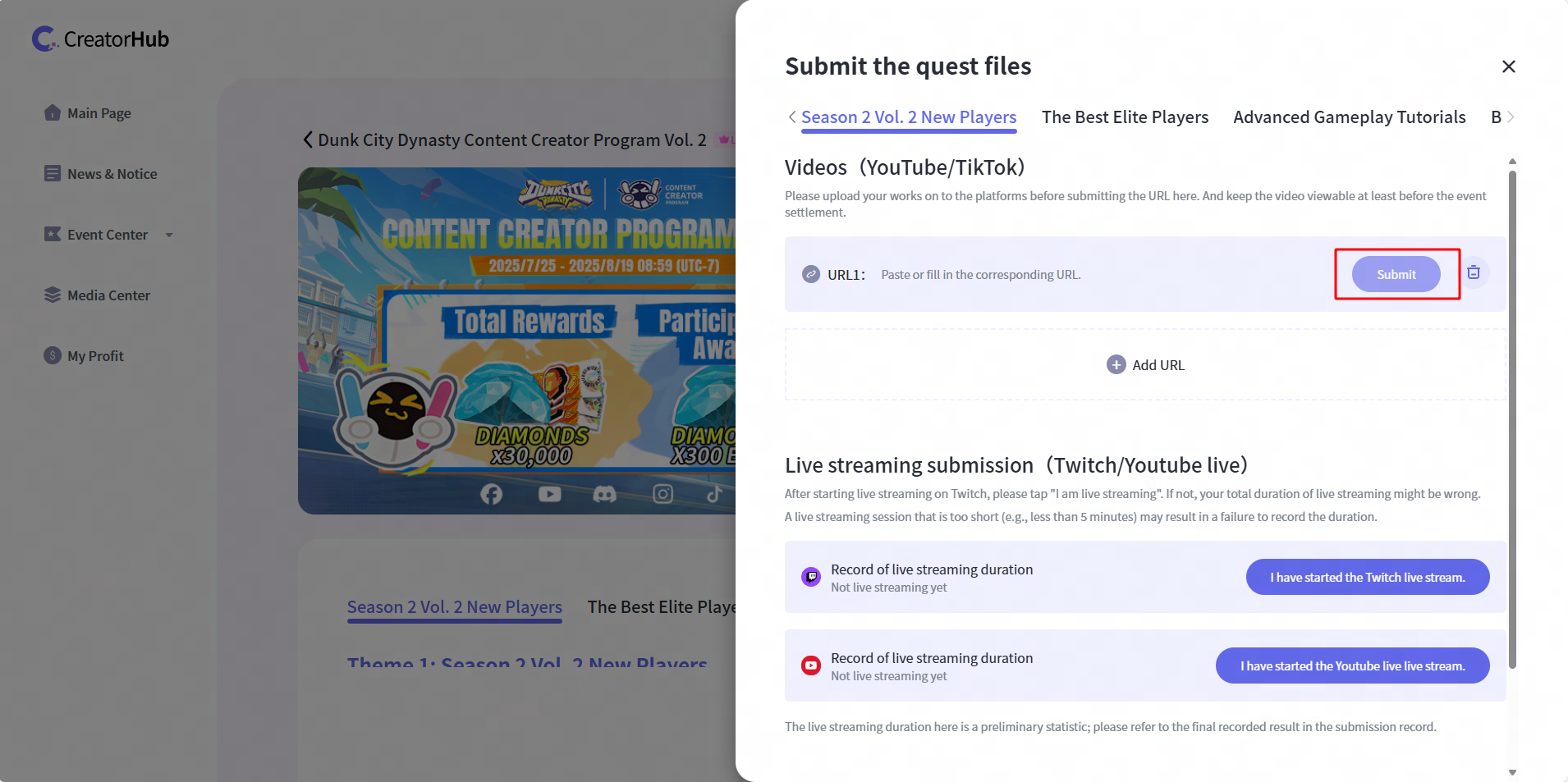
Note:
To submit a video entry, you must first bind:
1. Your gaming account for the corresponding game.
2. A social media account on a supported video platform within the event scope.
Failure to meet these requirements will prevent you from submitting your entry.
Additionally, you must submit content published from your linked social media account, or the submission will not be accepted.
How to Submit a Livestream Entry?
1. On the live event details page, click "Submit Event Entries" to open the submission panel.
2. Start your live stream on Twitch.
3. Click "I am live streaming"—the system will automatically track your streaming duration.
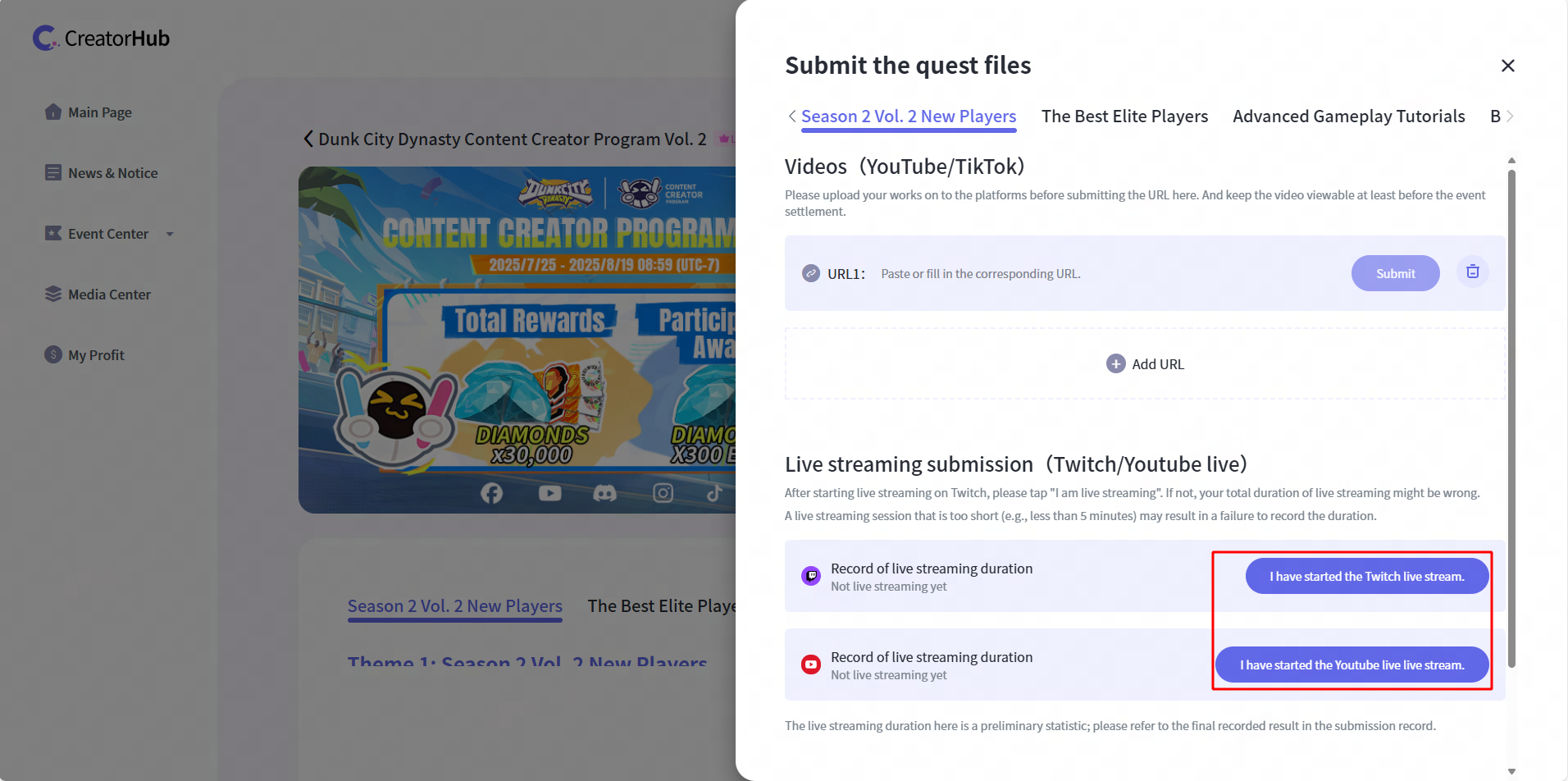
Note:
- Before clicking "I am live streaming", please ensure that your Twitch account is linked.
- Failing to click "I am live streaming" may result in inaccurate stream duration tracking.
- Streams shorter than 5 minutes may not be recorded successfully.
- The displayed stream duration is a preliminary estimate—please refer to the final recorded data in your submission history.
4. Submission Review & Data Tracking
How long does the review process take? How can I check my submission status?
- The review process typically takes 24 to 72 hours. Once approved, your video or stream data will be counted for event participation and reward calculation.
- To check your submission status, go to the event details page and click "Submission History" to view the review progress.
5. Rewards Calculation & Distribution
How are rewards calculated?
Rewards are determined based on the event rules, such as:
- Top 10 creators of video's views receive cash rewards.
- Streamers meeting specific engagement thresholds receive in-game rewards.
- Completing specific tasks grants physical merchandise.
*Please refer to the event details page for exact requirements.
When will I receive my rewards?
- Within 7 business days after the event ends, data will be finalized, and winners will be announced.
- Within 30 business days, rewards will be distributed.
- To check your reward status, go to "My Profit" or click "Reward Settlement" on the event details page.
What types of rewards are available? How are they distributed?
- Cash Rewards: Sent to your linked PayPal account.
- In-game Items: Automatically delivered to your linked game account.
- Physical Merchandise: Requires your shipping address details.
6. Official Game Assets Download
What assets are available for download?
The Media Center provides a variety of official game assets, including:
- Official gameplay videos
- Game-related images & text materials
- Official game soundtracks & audio files
How can I access the Media Center?
1. Log in to Creator Hub and navigate to "Media Center".
2. Browse or search for specific asset types.
3. Click the asset card to view details and download the files.
7. FAQs & Support
Account Issues (Editing Information, Unlinking Accounts, etc.)
- How do I edit my account information?
- Click on your profile in the top-right corner, go to "Personal Info", and select "Edit".
- How do I unlink an account?
- Go to "Account Linking", click "Unlink", and confirm the action.
Event-Related Questions
- Can I submit my content after the event ends?
- No, submissions must be completed before the event deadline.
- Why was my submission rejected?
- Please check the rejection reason and ensure your content meets the event rules and quality standards.
Payment & Rewards Issues
- What should I do if my reward hasn't arrived?
- Ensure your PayPal account is correctly linked, or contact us at service@support.thunderfire.com
- What if I don't receive my in-game rewards?
- Confirm your game account is properly linked, or contact us at service@support.thunderfire.com
Contact Us
For further assistance, reach out to our support team via:
- Email: service@support.thunderfire.com
- Feedback Form: Click the "Feedback" button in the top-right corner to submit your inquiry.